

TL;DR
Logitech's new MX Master 4 mouse builds on its acclaimed MX series with subtle yet significant upgrades. While keeping its familiar feel, it introduces a handy Actions Ring for quick access to eight functions and integrates Easy Switch for seamless device hopping directly into this ring, streamlining workflows. Gesture controls get a dedicated button, and while haptic feedback offers an intriguing tactile dimension, its practical necessity for everyday use is still up for debate. It’s a polished evolution, particularly for those deep in the MX ecosystem, though existing MX Master 3S owners might not need an immediate upgrade. Discover if these enhancements justify the price and how they stack up. Read the full review to find out!
Logitech regularly releases many interesting products. We are big fans and are happy to give our recommendation when it comes to Logitech’s MX series. Products like MX Brio, MX Creative Console, MX Vertical and, not to be forgotten, the fantastic MX Keys S, all possess high-performance technical capability alongside a confident elegance. That is why it is a bit of a big deal every time Logitech announces that something new in the MX series is on the way. And it is no less significant that the eminent MX Master 3S is getting a successor, Logitech MX Master 4.
As you can tell from the introduction, the MX Master 4 has a lot to live up to, and we can reveal right now at the start that Logitech has been both innovative and actually managed to improve aspects we hadn’t even considered. It will therefore be a pleasure for us to take a deep dive into what has the potential, from the very beginning, to become a new favorite on the desktop.
A first impression – Logitech MX Master 4
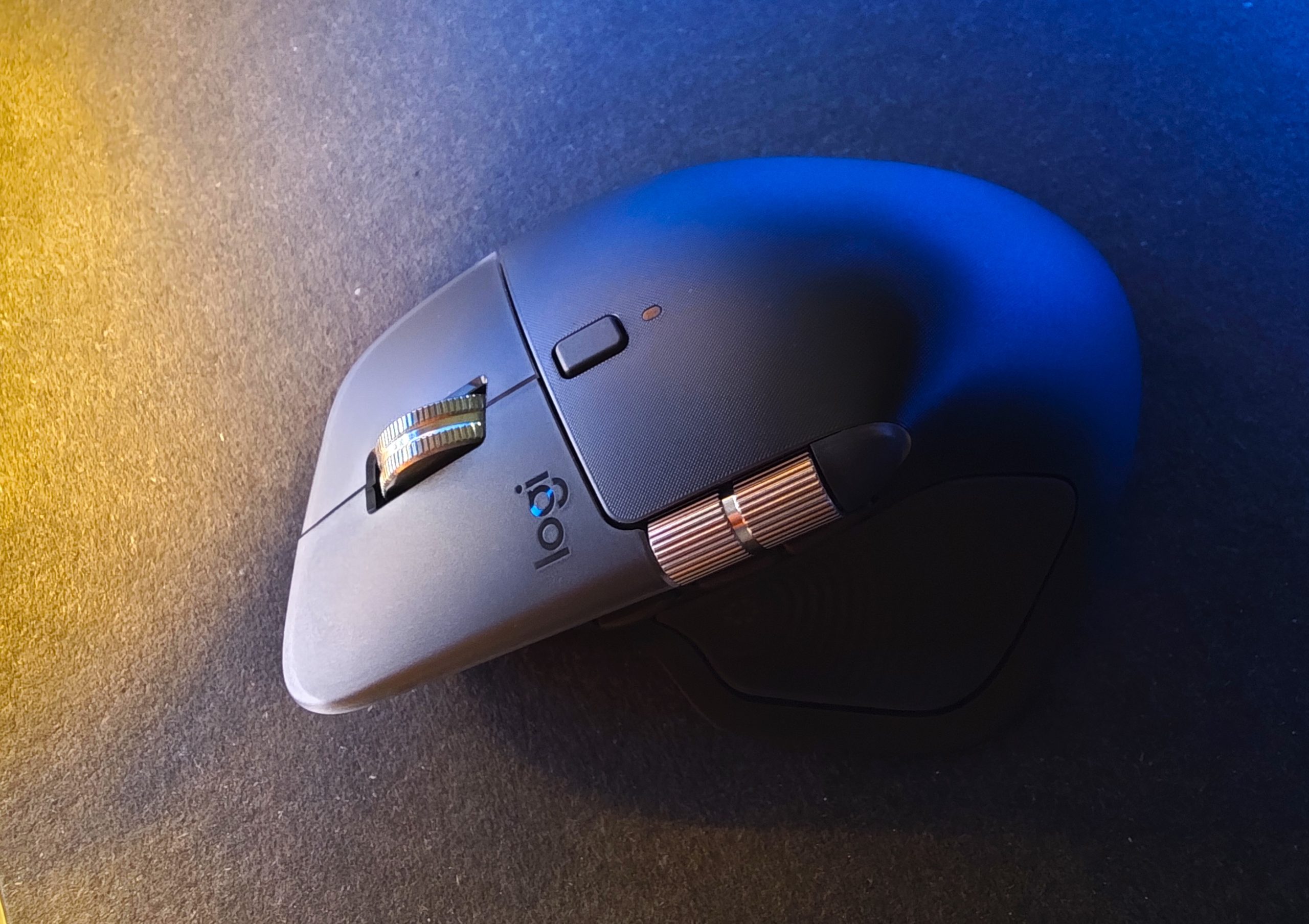
Same weight, same feel, and almost exactly the same shape. A new button: the thumb button has become more distinct, and the horizontal scroll wheel has moved up slightly. The vertical scroll wheel is now recessed between the main buttons, but otherwise, it is largely the same. The appearance has partially taken a backseat in favor of functionality, as the thumb button has lost its sleek surface but has simultaneously become easier to use. Included in the box is the Logi Bolt dongle but no cable. By now, most people probably have a USB-C cable at home for charging, but it’s not something that should be taken for granted, so Logitech gets a minor reprimand there.
But as mentioned, most things remain the same. For example, the wonderful feature where you give the scroll wheel a real flick and the ratchet releases until you stop the movement with your finger and it clicks. And the scrolling has then stopped. However, the effect was more pronounced on the MX Master 3S, which we miss slightly.
What’s new?
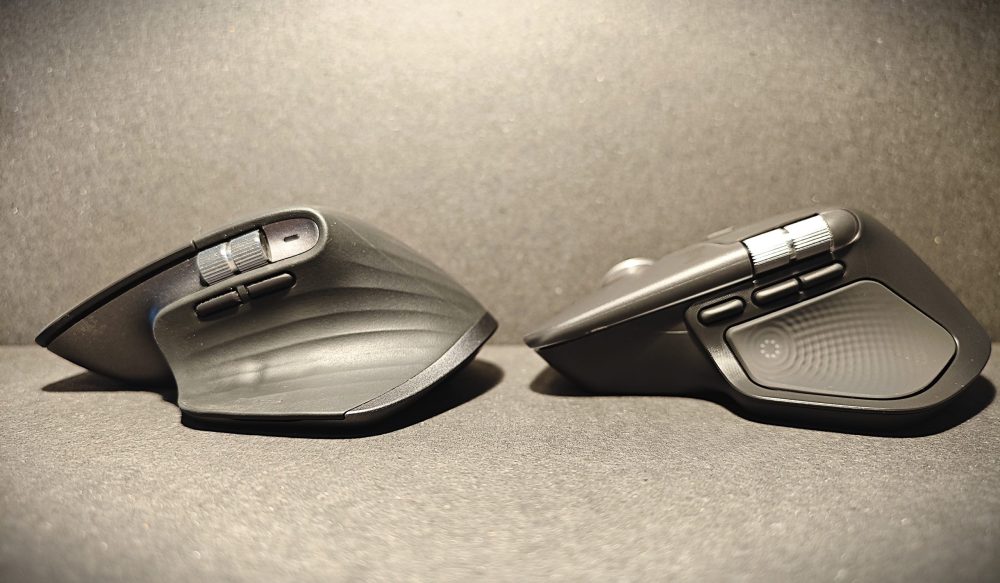
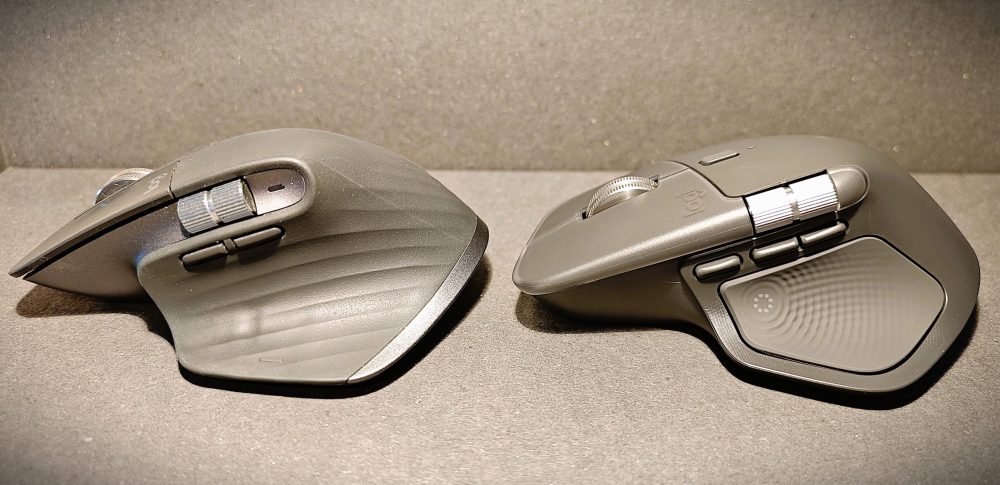
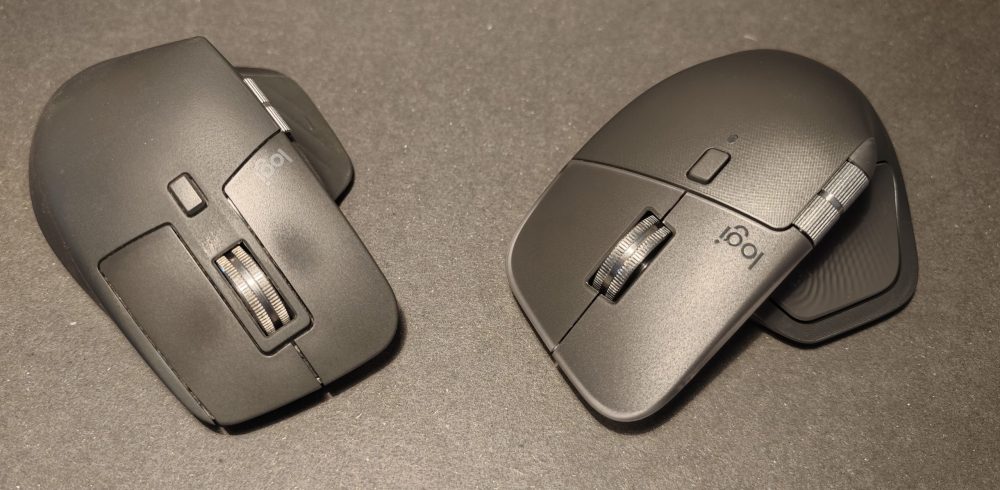
Quite a lot, actually. While one could argue that taking a deep dive into the features of a computer mouse with such high detail is overkill, it is something that very many people use daily. Furthermore, a computer mouse—like many other things, such as an advanced office monitor like Philips Curved Business Monitor—is so much more today than just something that moves a pointer on the screen. And if you learn the features, there is time to be saved, but above all, steps to be avoided.
Easy Switch is now in the Actions Ring
(Photo: Logitech)
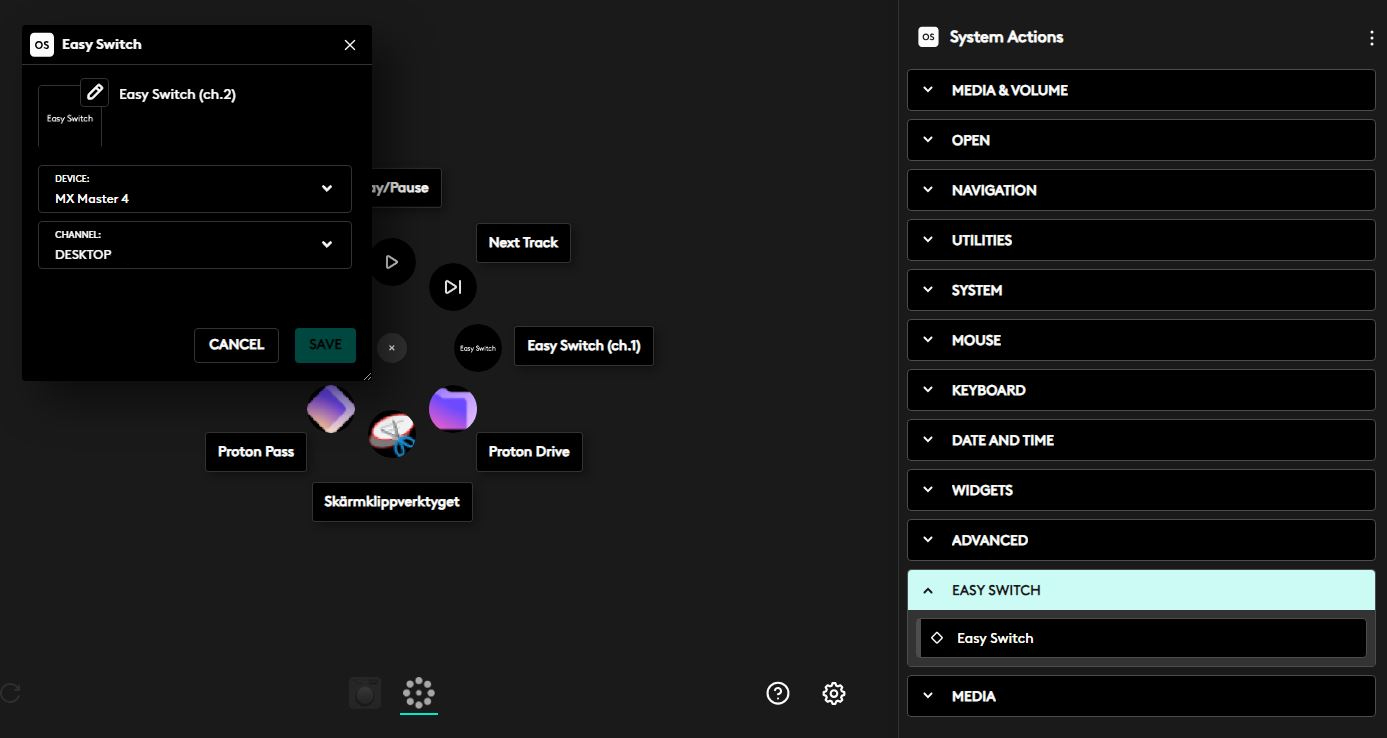
Clicking with your thumb—a movement that was initially a bit tricky without moving the whole mouse—brings up the Logitech Actions Ring. In it, you can choose from eight shortcuts, such as starting an AI or a Google search. As with most products in the MX series, they are all compatible with Logitech Easy Switch, which lets you switch between three preset devices by pressing the button on the underside and the same number on your keyboard. With the MX Master 4, Easy Switch is now built into the Actions Ring, so you no longer need to turn the mouse upside down. On top of that, you can also choose which keyboard should follow along. Thus, two steps have been removed with a single thumb press.
Gestures have a new button
(Photo: Logitech)
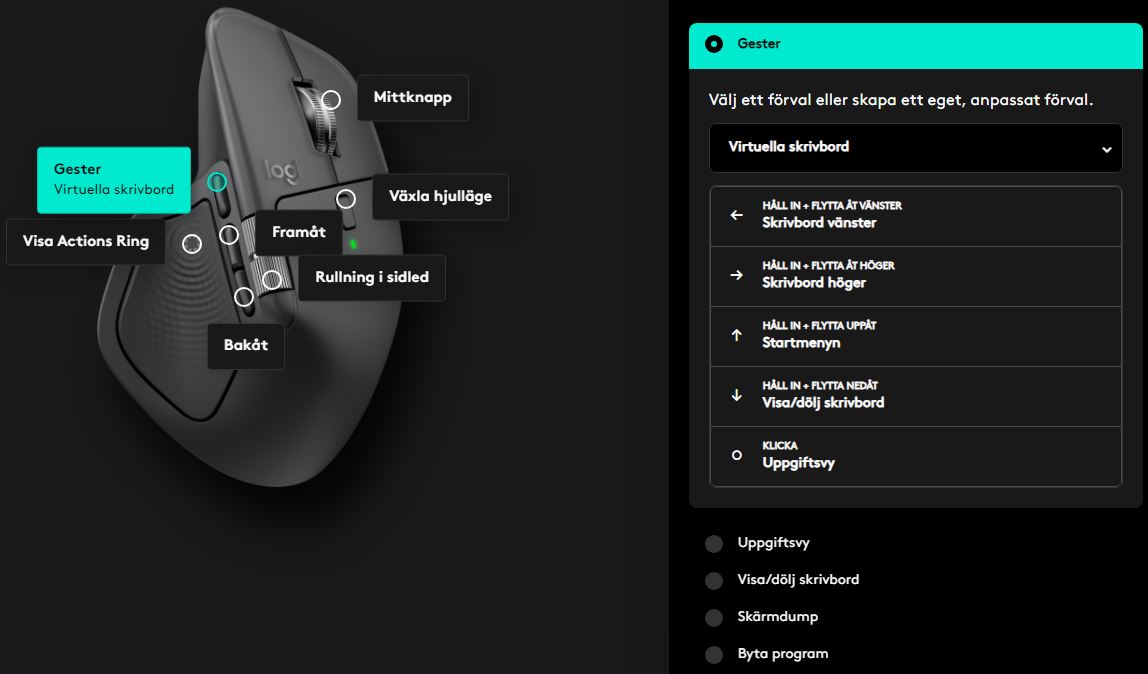
Gestures are a clever way to perform certain controls through swipes. Previously, this function was handled by pressing down with the thumb. To be honest, it wasn’t entirely easy to use that specific button, even if it was stylish.
Haptic feedback
Before the launch of the MX Master 4, Logitech wrote on its website: soon you will not only see your creativity, you will feel it. When you start the mouse for the first time, it vibrates vigorously. And it’s sleek when you hover over the various options in the Actions Ring. But, what do we need it for? You can implement haptic feedback in several programs and receive feedback on different actions. But the question is whether it’s necessary, given that we rarely look anywhere else when using a computer mouse. On a console controller or possibly also on gaming mice, it can enhance the experience. But on an office mouse, it isn’t as clear. You can decide the degree of feedback you want, and you can also turn off the vibrations entirely. Because, of course, it affects how long the mouse lasts before you have to charge it. So, sleek, Logitech—we agree—but we don’t quite know what to use it for.
(Photo: senses.se)
The bottom line – Logitech MX Master 4
Logitech has improved a bit here and added a bit there. Being able to have Easy Switch included in Smart Actions now is brilliant, really useful, and smooth. But it’s more of a software update, so in a way, we don’t feel it can be entirely attributed to a new model. However, the three physical changes—the new thumb button, better ergonomic positioning of the horizontal scroll wheel, and a separate button for Gestures—are truly well-thought-out. These are advancements and features that we didn’t fully realize we were missing until they were in place. The haptic feedback is sleek but a bit hard to place; exactly what should we use it for that our eyes don’t already perceive? It may well be that clever use cases will emerge in the future, but at present, this feature is not the MX Master 4’s trump card.
Does it feel worth the price? For those of us with a fondness for the MX series who have used it regularly, we know that you get a lot for your money; the products tend to have a long lifespan and are customizable to the core. So with a price of around 1,500 SEK, the price itself isn’t an issue. There is, however, an underlying feeling that you’re paying a bit extra (the MX Master 3S cost 1,000 SEK at launch) for the vibrating innovation, something that perhaps doesn’t provide quite as much value as it costs.
So finally, nothing about the MX Master 4 is bad. Just like its predecessor, it is something of a limousine, and it fits perfectly into the MX family, even if some of the elegance has disappeared with the new design. Should you upgrade from your MX Master 3S for the new features? Well, no rush. But if you were to find the MX Master 4 for just a few hundred kronor less, it’s a no-brainer. This is, and remains, one of the most elegant, feature-packed, and comfortable office mice on the market.
Logitech sent a review unit for this test. Providers of material have no editorial influence on our tests; instead, we always write independently with you, the readers and consumers, in focus.
How we rate products at SensesReview Highlights: Q&A
What is included in the box with the mouse?
The package includes a Logi Bolt dongle, but no charging cable.
How do you switch between different devices?
Use the thumb button to access Easy Switch via the Actions Ring.
What are the main physical changes to the design?
It features a new thumb button and a repositioned horizontal wheel.
Does the MX Master 4 support gesture controls?
Yes, gestures are now accessible through a new dedicated button.
Is it worth upgrading from the MX Master 3S?
There is no rush to upgrade unless you find it at a discounted price.
What does the new haptic feedback feature do?
It provides vibrations for certain actions and menu selections.
How much does the Logitech MX Master 4 cost?
The mouse is priced at approximately 1,500 SEK.
